Table of Contents
Installation Guide
For those who prefer video guides, here are some excellent ones by ETA Prime:
- If installing Batocera onto an x86_64 computer, Turn An Old Cheap PC Into An Emulation Dream Machine! (the controller configuration for standalone emulators at 18:27 is outdated, Batocera now handles controller configuration for you. For customizing controls per emulator, check this page)
- If installing Batocera onto a single-board computer, Install Batocera On The Raspberry Pi 4 Full Setup Guide - Retro Gaming Goodness!
You can check out which devices Batocera supports running on at the supported devices page!
Generic instructions for most platforms are as follows:
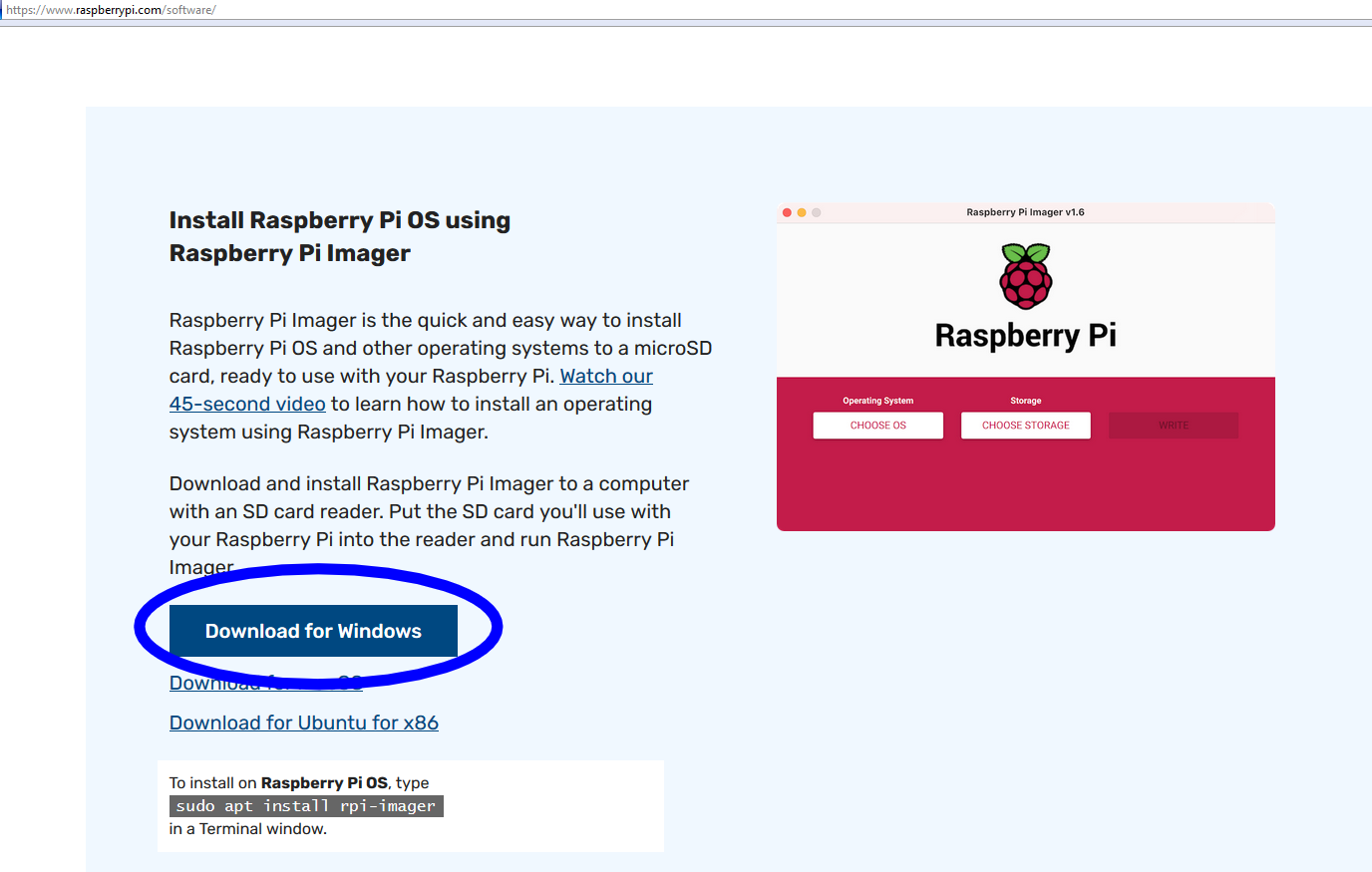
- Download an image flashing tool for your operating system such as Raspberry Pi Imager or USBImager. We will be using Raspberry Pi Imager in these instructions.

- Download an image file from the download section on the Batocera website that matches the architecture you want to use for Batocera (x86_64 for most PCs, other devices usually have their own specific image).
Some browsers like Chrome/Opera/Safari may take the liberty to unzip the file by themselves and poorly rename them. If the file is more than 4 GB, it is already unzipped. If your download fails, use another browser. Yes, Chrome sucks, that's a fact, use another browser.
- Insert the intended USB drive, SD card, hard-drive or SSD (you can attach one via a SATA/M.2 to USB cable) into your computer. 16 GB storage space is the minimum, 32 GB is recommended for full functionality (you cannot automatically download updates with only 16 GB).
- Install and run Raspberry Pi Imager.
- Click CHOOSE OS.

- Scroll down and select Use custom.

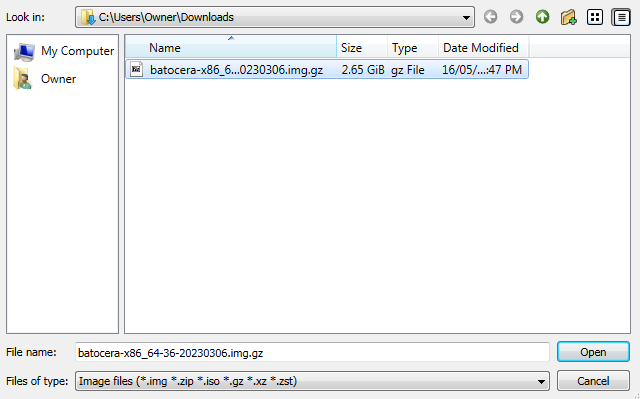
- Select the image
batocera-(arch)-(version)-(date).img.gzthat you just downloaded.
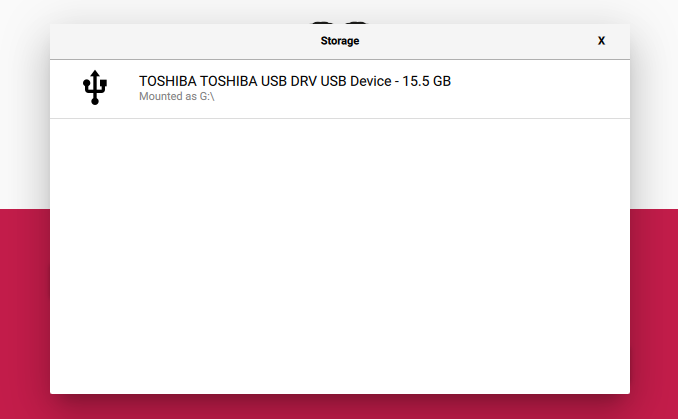
- Click CHOOSE STORAGE and select the USB drive, SD card or hard-drive.


- Click NEXT.

- Click NO.

- Confirm that it is the correct destination (triple-check it's the correct drive before proceeding, as all existing data on the drive will be destroyed!), then click YES.

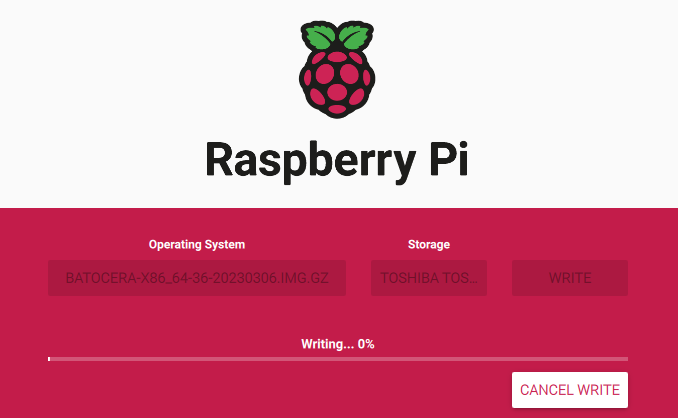
- Wait patiently for the writing to finish, this may take a while depending on the speed of the card/drive.
Windows may offer to format the drive thinking it is a new device, cancel this request otherwise Batocera will be wiped out.

- In case the flash fails outright, try closing down any unnecessary software such as anti-virus programs or virtual machines and try again.
- Upon finishing, check that the image has been written successfully.

At this point, the drive contains a
BATOCERAboot partition (files differ depending on architectures). This partition will be smaller than the total size of the drive, don't worry as this is just Batocera's boot partition! The drive also contains a
 SHAREpartition which will be expanded the first time the drive is booted, to consume any unallocated space, and which is not normally visible to Windows. - Shut down your computer and insert your USB drive, SD card or hard-drive into the machine you want to boot with Batocera and turn it on.
- Ensure your device will boot into the USB drive, SD card or hard-drive:
- Most single board computers will automatically boot to the appropriate USB drive/SD card if only one is inserted into the system.
- If on a recent PC using an x86/x86_64 build, you may need to disable Secure Boot in your BIOS settings.
- If on a PC, you may need to enter the boot selection menu with
[F10],[F11]or[F12]and select the Batocera drive. UEFI is preferred if available, but not necessary.
- Boot the Batocera drive and let it automatically expand the userdata partition (could take a few seconds or a few minutes, depending on your drive size/speed), it will reboot again once done. Don't turn off the device during this step or you might risk data corruption!

If instead another blue screen appears saying verification failed this means you are in secure boot mode and have not enrolled Batocera's keys yet. Press
Enterand follow the on-screen prompts to do so, for further info refer to the the secure boot page.

- Enjoy!









Be sure to check out how to add game ROMs/BIOS files required for certain emulators. Batocera's front-end is driven by a modified version of EmulationStation (sometimes referred to as ES). Check out its overview page to learn how to navigate it!
If your Nvidia GPU is not detected, you may want to manually activate the official drivers for it to increase its performance, but Batocera can run fine using the default nouvaeu drivers if that isn't working for your machine.
Flash failed!
Don't panic. the imager will usually explain what went wrong in its error message, so be sure to read that completely.
If using Balena Etcher to flash Batocera, and it does not state what went wrong, it's likely because of an ancient bug in Windows that prevents it from seeing multiple partitions on any USB drive. This can be fixed easily by reformatting the entire drive to NTFS and then trying again. In case Windows' own tools fail to do this, there are command prompt instructions below to forcefully wipe the drive. Yes, this is as dangerous as it sounds.
BIOS settings (if Batocera fails to boot)
Before troubleshooting, check if Batocera has actually booted first! Batocera has booted if:
- The Batocera splash image appears on any connected display.
- The SSH server is live and it is possible to log into it.
If this is the case and you only see a blank screen, it is instead a display issue.
Batocera should boot fine with UEFI, if that option appears you should select that. However, sometimes Legacy (or MBR as it's sometimes referred to) is the only option, depending on the motherboard.
Since there's no consistency between motherboard manufacturers, no step-by-step instructions can be provided. You can refer to University of Wisconsin Division of Information Technology's knowledge base page for your particular manufacturer's board on how to enter the BIOS settings on various motherboards during boot. Typical keys are [F12], [F11], [F10], [Del] or [End]. Typical keys for entering the boot selection screen are [F12], [F11], [F10], [F9] or [Del]. Some keyboards may require holding down the [Fn] key too. The manual that came with your motherboard can provide further clues, or you can try exploring all the sub-menus of the BIOS yourself.
To access the BIOS settings from Windows, hold the [Shift] key while selecting Restart and go to Troubleshoot → Advanced Options: UEFI Firmware Settings. Alternatively, go to Settings → Change PC settings → Update and Recovery → Recovery → Advanced Startup: Restart now, and then upon restarting go to Troubleshoot → Advanced Options: UEFI Firmware Settings.
Here are other known aliases BIOS's may use for various settings and what they may need to be set to:
- Secure boot a.k.a. compatibility mode, compatibility support module, UEFI with CSM, etc. Typically in the “security” category, but can also appear in the “boot” or “authentication” category. You may need to disable secure boot/clear keys, regenerate keys and/or enable the compatibility support module (CSM) to allow other operating systems (such as Batocera) to boot.
- Enroll an EFI a.k.a. add keys, secure key generation, ownership, etc. Typically in the “security” category, but can also appear in the “boot” or “authentication” category. Most motherboards should automatically add detected EFIs to the list of permitted bootable drives, but certain motherboards require this to be a manual action. Add the file at
EFI/boot/bootx64.efifrom the Batocera boot drive. This can be avoided entirely by switching secure boot off.
- Legacy boot a.k.a. allow legacy ROM booting, EFI, MBR, load legacy options, show insecure targets, etc. Typically in the “boot settings” category, but sometimes also has its own section. Some motherboards will force any UEFI boots to use Secure Boot with the keys for the original operating system, blocking other operating systems (such as Batocera) from booting. If this is the case for your motherboard, a typical workaround is to use/force Legacy Boot. If neither of these options work, refer to the manufacturer of your motherboard for support.
- Removable Media Boot a.k.a. USB boot. Typically in the “device”, “storage” or “boot” category. Some motherboards may actively block the booting off of removable media such as USBs. This feature is typically found on office-oriented PCs.
- Boot order a.k.a. boot priority, ROM order, boot options order, UEFI Hard Disk Drive BBS Priorities, etc. Typically in the “boot” category, but sometimes also has its own section. Some motherboards may treat UEFI as one entry in boot selection, so you'll need to go to the specific UEFI BBS Priorities menu in the BIOS settings to switch the order to your Batocera drive first. In other cases it's not strictly required, but can make the Batocera drive the 'default' booting option when plugged in; ie. you won't have to manually select the Batocera drive to boot off it of every time.
If you'd like to see a real-world example, check out this external link: https://www.tenforums.com/tutorials/85279-enable-disable-secure-boot-windows-10-pc.html
If attempting to run Batocera on a computer that ordinarily runs Windows, you may have to also disable these settings:
- Fast boot a.k.a. quick boot, quick resume, hybrid sleep, etc. Typically in its own “Windows” category.
- Windows 8/8.1/10/11 compatibility a.k.a. CSM (note no UEFI, yeah), compatibility mode, legacy support (for older systems), etc. Typically in its own “Windows” category. This should be disabled for alternative operating systems, though turning this off will mean you'll probably have to switch Windows itself to support legacy booting (should do so automatically).
- TPM a.k.a. Windows 11 compatibility (yeah), TPM Security Module 2.0, USB security, etc. Typically in “security” category. This is a modern “feature” that can prevent alternative operating systems from booting up. All computers with Windows 11 preinstalled going forward will have this activated by default. Turning this off will likely render Windows 11 and above unbootable until it is switched back on, as it is a “system requirement”.
Laptops typically have more restrictions on what they will load compared to tower PC motherboards. Google is your friend here.
If all else fails, refer to the boot section on the troubleshooting page for more things to try and console output.
Mac boot order selection
Before booting: Disable Secure Boot and enable booting from external media (On Newer UEFI Macs)
- Reboot your MAC, at Apple logo press and hold
[CMD]([Win]on ASCII keyboards)+[R] - Mac will starts the macOS recovery mode, select and login with your admin account.
- At top menu bar, select
Utilities»Startup Security Utility, and enter you admin account password again. - Changes Secure Boot to
No Securityand Allowed Boot Media toAllow booting from external or removable mode. - Close it and Restart your Mac.
- Follow instructions on next section…
Startup Batocera
To access the boot selection screen on Mac, hold the [Option] ([Alt] on ASCII keyboards) key while booting.
Some keyboards may require you to hold the [Fn] key as well!

If you hold down the [Ctrl] key on this screen, the arrow will change to a circular one;

This indicates that your machine will default to booting from this device. Hold [Ctrl]+[Return] ([Enter] on ASCII keyboards) to confirm.
On Macbooks especially, some hardware such as the touchpad or keyboard may not be supported under Linux. Fortunately, Batocera is functional with a controller alone.
Install Batocera from Batocera
Perhaps you'd like to spread the love and install Batocera onto a machine from an already set-up USB stick? Or maybe you just want to install Batocera directly to your hard-drive. Or maybe you want to prank someone. This is for that.
When Batocera is installed onto your computer's internal hard-drive this way, all existing data (including your currently functional operating system) will be overwritten. There is a chance your motherboard may not be able to boot Batocera from the internal drive, in comparison to booting from USB. Have an additional computer on-hand to be able to recover in case this process fails.
If you would simply like to use your large hard-drive to store all of your ROMs/BIOS's/saves, refer to using external storage instead.
This method is identical to flashing the Batocera image using Etcher. If you have the expertise and tools required, you should instead connect your drive directly to a running computer and flash Batocera using Etcher, so as to save downloading the image from the servers again. The instructions below are for if you cannot do that.
Batocera does not install itself by copying system files over from the USB/SD card like other live distros might. It has to download, extract and install the image as a whole.
- Make sure you are connected to the internet and that your USB stick has enough free storage to download the Batocera image.
- Boot into Batocera and press
[START]to open the MAIN MENU.
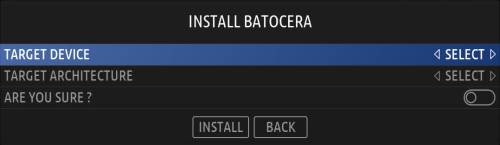
- Navigate to SYSTEM SETTINGS → INSTALL BATOCERA ON A NEW DISK.


- Select the destination you'd like to install Batocera onto. Make sure it's not the same drive you're currently booted off of, as that will corrupt your USB stick!
- Check that you've selected the right drive. This is very easy to mess up and its actions are irreversible.
- Take a deep breath and check a third time. This is really important.
- Select your target architecture. It should be the same as what you selected on the download page when you first installed to your USB (most of the time, this will be X86_64).
- Make sure that you're sure about this. Your menu should look similar to this:

- Press INSTALL.
Depending on your internet connection, it may take a while to download and install. You cannot use your Batocera system while this is happening.
If you need to install a specific version of Batocera onto your internal drive, and you have no way of just plugging that drive into another computer to flash the version you want onto it, you can always install the latest Batocera and manually downgrade.
Batocera does not boot from internal drive
A few things you can try:
- Configure your motherboard's BIOS settings to allow loading the
bootx64.efifile. This may involve going into a specific EFI boot-order submenu. As above, every motherboard is unique in this regard. - Manually install Batocera onto an already existing bootable EFI partition.
- Use the MBR partitioning table instead of the default GPT. Video tutorial explaining one way of setting that up.
If you're still having trouble, ensure you've also tried the above troubleshooting section or the boot section on the troubleshooting page. If it still fails, revert to booting from USB.
Etcher broke my USB!
It's actually not possible for Etcher or any flashing tool to do that. However it could be that the drive itself was dying and in the attempt of writing data to it one of its cells started to fail (time for a replacement). Refer to Etcher's article on the topic for more information, and how to possibly “save” a drive. These methods can also be used to “be able to use my USB again” after flashing Batocera.
Be very careful to select the right drive here. It is possible to accidentally wipe your Windows drive instead.
In essence, on Windows run the following from the command prompt (where # is the number of the desired disk):
diskpart
list disk
select disk #
clean
create partition primary
select partition 1
format quick