Table of Contents
Syncthing
Starting with Batocera v33, files can be synchronized across multiple devices using Syncthing. A good use case is to enable synchronization of your saved games, so that you can start a game in the morning on your Odroid Go Advance, resume your game on your PC in the afternoon, and finish up your game on your Raspberry Pi in the evening, all with the same saves.
The beauty of this solution is that you don't necessarily need a cloud storage account, nor a central NAS storage location, and it works not only over your local network, but also across the Internet. You can synchronize your saves from your home Raspberry Pi to your Odroid Go Advance while you play in the office (yeah, it's your lunch break, you're allowed to relax a bit at this office, we don't mind ;) ).
Disclaimers
- There is a risk that you lose the files that are getting synchronized, or an important save file might be overwritten by a Batocera node with an incompatible format. Batocera takes no responsibility for this, you're on your own and are fully responsible if you lose data with this process. Make backups for important files, always.
- Savestates may not be compatible between major versions of Batocera. Most emulators change the way their savestates are created with major version bumps, and are thus incompatible with savestates made on major older/newer versions of the emulator. Always make a regular save every once in a while, this too applies to when using savestates regularly.
- As an extension to this, the way savestates are created across platforms may be incompatible as well. For instance, the ARM version of GenesisGXPlus's savestates are not compatible with the x86_64 version of GenesisGXPlus.
- It should go without saying, when syncing savestates ensure that both systems have the same emulator selected. Certain platforms may have a different default emulator for a given system.
Cluster configuration
- If you have a machine that is up 24/7, like a NAS or a personal server, you can install Syncthing on this machine, and put it in your Syncthing cluster. As it is always up, your Batocera machines will synchronize with this central server. For example, an OpenMediaVault NAS could act as a cluster, with Syncthing running in a Docker container.
- If you don't have a machine running 24/7, when you synchronize files across two Batocera nodes (or more), you need to make sure both of them are up and running during the file synchronization processes.
- The process is the same if you have 3 or more nodes. Each node will synchronize their local content with the other peers in the cluster, once correctly configured.
Initial setup
First, enable Syncthing on all the Batocera machines you want to use for saves synchronization.
On each machine with Batocera v38 and higher, execute the command:
batocera-services enable syncthing
On each machine with Batocera v37 and lower, edit the /userdata/system/batocera.conf file and add:
system.syncthing.enabled=1
Once this is done, reboot Batocera. When Batocera is back up, on another computer on the same local network, open a web browser to http://batocera:8384 (where “batocera” is the IP address of your machine, if the DNS is not up).
You will have a Synthing web UI where the configuration process start.
First, a few housekeeping items:
- do you allow to share encrypted usage data with Syncthing (Yes/No). Fully optional, and this data won't ever be shared with Batocera in any way, shape or form.

- A warning that the process should not run as a privileged user. At the moment, this is a limitation you need to accept to use Syncthing on Batocera.


Now let's move on to the configuration:
- Settings: this is the main page where you can define a Syncthing name for your Batocera unit, and on the GUI tab you can put a login/password to protect access to this web configuration page on
http://batocera:8384. I would strongly encourage you to put a login and password in there.In Batocera v33, if ENFORCE SECURITY is “ON” then the Syncthing web UI cannot be accessed externally. To circumvent this, two options:
1. Disable this setting to regain access to it externally.
2. Or create a SSH tunnel from another machine. For example, on a Linux host you can
ssh -L 3000:127.0.0.1:8384 root@batoceraand it creates a SSH session with local port 3000 mapped to port 8384 on the Batocera machine. This way, within the SSH session once you are connected, you can go tohttp://127.0.0.1:3000/on your Linux host and it will show the Syncthing configuration UI on the Batocera machine. If you use Windows, Putty also has an option to create SSH tunnels.

- Once you have this basic setup done on at least two Syncthing nodes (i.e. two Batocera machines with Synchthing on, or a Batocera + your central server for saves), you can create a cluster of Syncthing nodes, by telling each node which are the other machines where you want to share your saved files. Click Add Remote Device…. You can add a friendly name for each machine, internally Syncthing identifies them with a self-generated
DeviceID. This also is where you would set the Introducer option if connecting to an always-online NAS.

- Now that we have our cluster of Syncthing nodes, we can configure the folders that need to be synchronized across them. In our example here, we want to synchronize the games save files in
/userdata/saves/. Be mindful of thefolderIDthat is provided here. I kept the default one assigned by Synchthing, but you can put your own. What is important is that you keep the samefolderIDfor all nodes in the cluster.

- Then on the “sharing” tab of the same screen, you can select all the nodes you want to synchronize this Batocera saves folder with.

- You need to repeat that on all nodes, but if your nodes are on the same network, they might be auto-discovered and announce their shared folders to the other nodes to provide a one-click easy addition.

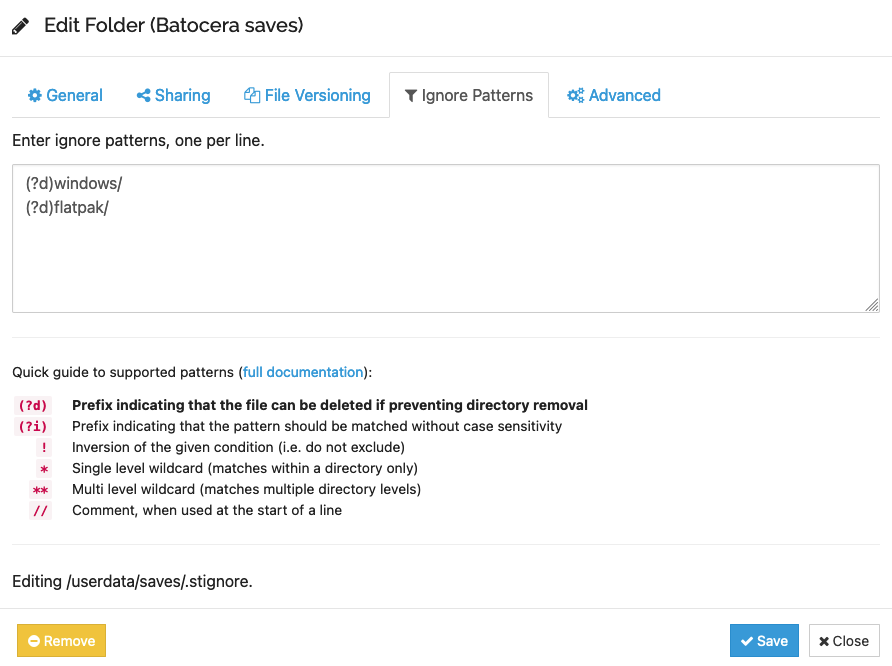
- If you run Batocera on a PC x86_64, as well as other SBC, there might be save folders you want to ignore for the synchronization. Typically, flatpak and Windows games aren't necessary on a SBC and eat up quite a lot of storage. So, you can define some patterns that you want to ignore. On my PC x86_64, I put
flatpak/andwindows/to ignore these folders, without deleting them. On my SBC, I put(?d)flatpak/and(?d)windows/with(?d)meaning that the directories can be deleted if they are deleted in the syncthing cluster. Be careful with this option, if used incorrectly you may lose data.

The ignore syntax is very powerful, its full documentation is available at https://docs.syncthing.net/users/ignoring and should be read before attempting to use this.
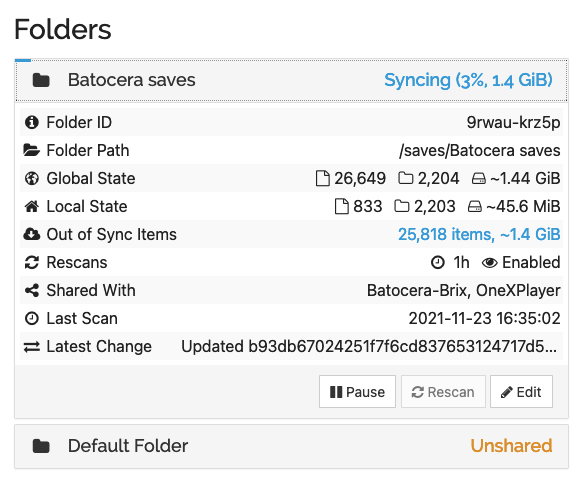
- Once the shares are configured, you should see on the UI a progress for the initial synchronization. Depending on the size of your shared files, it might take some time, but you can follow the process on this screen.


Operational running
- At any given time, you can check the status of the synchronization across the cluster of Syncthing nodes on any of them with this screen.

- Right now, when a new save file is added, or when a save file is updated on a node, you need to “reload gamelists” from the main menu to see the new save files and save screenshots updated in EmulationStation.
Manual execution
Here are a few handy SSH commands:
- Run sync:
/usr/bin/syncthing serve --no-browser --logfile=default - Open the Syncthing UI in Batocera:
/usr/bin/syncthing -browser-only - Open the Syncthing command line via SSH:
/usr/bin/syncthing --gui-address http://0.0.0.0:8384 - Open the Syncthing command line via SSH when ENFORCE SECURITY is enabled:
/usr/bin/syncthing --gui-address http://127.0.0.1:8384 - Run the background service manually:
/usr/bin/syncthing serve --no-browser --no-restart --logflags=0
Advanced configuration
Syncthing's configuration files are stored at /userdata/system/configs/syncthing.
Troubleshooting
In case something goes wrong with Syncthing, a useful log to check is at /userdata/system/logs/syncthing.log.
Further help can be found at Syncthing's documentation.
Generic cloud backup
https://gitlab.com/peterbozso/batocera-backup-service
The use-case of this solution is very similar to Syncthing, but the goal here is to utilize cloud storage (OneDrive, Google Drive, Dropbox, etc.) to back up your data. The important difference is that this is upload only; it does not synchronize data both ways. It is for continously cloning a single machine's userdata to the cloud service, so in case of a hardware failure/loss, a backup of the userdata can be easily restored.
This solution uses rclone, which is shipped with Batocera and Batocera's services feature. Because of the latter, it requires Batocera v40 or higher.
A detailed description of how this works and setup instructions for it is on peterbozso's batocera-backup-service repository.