This is an old revision of the document!


Nintendo Entertainment System
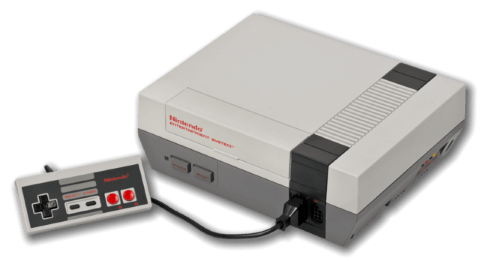
The Nintendo Entertainment System, known as the Nintendo Famicon in Japan with a radically different design, is an 8-bit third-generation video game console released by Nintendo in Japan in 1983. It was redesigned as the NES and released two years later in the US, retailing for $179.99. Debatably the first majorly successful video game console after the North American video game crash of '83, probably why it looks more like a VCR than a console.
The original Famicom had the Family Computer Disk System add-on released for it which allowed playback of games on higher capacity discs which commonly featured enhanced sound capabilities. Since the NES had a delayed release, it included additional mapping hardware negating the need for the add-on, albeit without the sound enhancements. Many Famicom disk-only games were ported to cartridge form for their US release. The default theme, Carbon, supports switching between regions in its theme settings in the case that you'd prefer to see the Famicom design instead of the NES design on the system list.
For emulation of the Famicom Disk System (FDS) specifically, use the fds folder instead.
Emulation of the NES is pretty well established. If your machine can only emulate one system at full speed, it will be this. Choice of emulator doesn't particularly matter, they're all good nowadays. MAME can emulate the Vs. Dualsystem cabinet, but if this your first time hearing about that don't worry about it.
This system scrapes metadata for the nes group(s) and loads the nes set from the currently selected theme, if available.
Grouped with the “nes” group of systems.

Quick reference
- Emulator: RetroArch
- Folder:
/userdata/roms/nes - Accepted ROM formats:
.nes,.unif,.unf,.zip,.7z
BIOS
No NES emulator included in Batocera requires BIOS files.
ROMs
.nes for cartridges, .fds for Famicom discs. Although the emulators can emulate both NES cartridges and Famicom disks just fine, Batocera has the systems split up into two separate entries, /userdata/roms/nes for NES and /userdata/roms/fds for Famicom. Put your ROMs in their respective folders, and then if you want you can group the systems inside of EmulationStation so that they share a menu.
Famicom disks typically have two sides! If you encounter a static screen that starts with B then it's likely asking you to flip sides. The default shortcut for flipping sides is L1.
The ROMs are pretty easy to mod as well, just open them up in a tile editor and you'll see all the game/sprite data stored in 8×8 pixel tiles. Level layout changes typically require a specialized level editor program for that game (if there even is one).
Emulators
NES emulators will typically rely on the filename to choose the correct region setting and speed by default. Nestopia is an exception, it uses a separate file called Nstdatabase.xml, located in the userdata/bios folder.
RetroArch
RetroArch (formerly SSNES), is a ubiquitous frontend that can run multiple “cores”, which are essentially the emulators themselves. The most common cores use the libretro API, so that's why cores run in RetroArch in Batocera are referred to as “libretro/(core name)”. RetroArch aims to unify the feature set of all libretro cores and offer a universal, familiar interface independent of platform.
RetroArch configuration
RetroArch offers a Quick Menu accessed by pressing [HOTKEY] +  which can be used to alter various things like RetroArch and core options, and controller mapping. Most RetroArch related settings can be altered from Batocera's EmulationStation.
Standardized features available to all libretro cores: nes.videomode, nes.ratio, nes.smooth, nes.shaders, nes.pixel_perfect, nes.decoration, nes.game_translation
ES setting name batocera.conf_key | Description ⇒ ES option key_value |
|---|---|
| Settings that apply to all cores of this emulator | |
GRAPHICS BACKEND nes.gfxbackend | Choose your graphics rendering ⇒ OpenGL opengl, Vulkan vulkan. |
AUDIO LATENCY nes.audio_latency | Audio latency in milliseconds, turn it up if you hear crackles ⇒ 256 256, 192 192, 128 128, 64 64, 32 32, 16 16, 8 8. |
THREADED VIDEO nes.video_threaded | Improves performance at the cost of latency and more video stuttering. Use only if full speed cannot be obtained otherwise. ⇒ On true, Off false. |
libretro/fceumm
FCE Ultra “mappers modified” is a libretro-maintained fork of FCE Ultra. High compatibility. A small amount of early romhacks may only work in this emulator.
libretro/fceumm configuration
ES setting name batocera.conf_key | Description ⇒ ES option key_value |
|---|---|
| Settings that apply to all systems this core supports | |
REDUCE SPRITE FLICKERING nes.fceumm_nospritelimit | Enhancement. The NES has an 8 sprite limit per line, when this is exceeding the remaining sprites are flickered between (or sometimes just don't show up at all!) This setting removes that limit. Enabling it has no ill effect in most games but is less accurate to the original hardware. ⇒ Off disabled, On enabled. |
CROP OVERSCAN nes.fceumm_cropoverscan | The NES outputs an image that is larger than what would have been displayed on the typical CRT TVs used during the time period. Therefore, some games display “garbage” pixels here that aren't intended to be seen. This setting crops out the border to simulate the same effect. Some games only have garbage on the top/bottom or the sides of the screen, others have none whatsoever. It's safe just to leave it on for all games if you want. ⇒ None none, Horizontal h, Vertical v, Both both. |
COLOR PALETTE nes.fceumm_palette | Choose which color palette to use. ⇒ default default, asqrealc asqrealc, nintendo-vc nintendo-vc, rgb rgb, yuv-v3 yuv-v3, unsaturated-final unsaturated-final, sony-cxa2025as-us sony-cxa2025as-us, pal pal, bmf-final2 bmf-final2, bmf-final3 bmf-final3, smooth-fbx smooth-fbx, composite-direct-fbx composite-direct-fbx, pvm-style-d93-fbx pvm-style-d93-fbx, ntsc-hardware-fbx ntsc-hardware-fbx, nes-classic-fbx-fs nes-classic-fbx-fs, nescap nescap, wavebeam wavebeam, custom custom. |
NTSC FILTER nes.fceumm_ntsc_filter | The emulator has the Blarg NTSC filter built-in, unrelated to the shader preset you can choose within Batocera. You can use Batocera's or RetroArch's preset shaders instead. ⇒ Off disabled, Composite (color bleeding + artifacts) composite, SVideo (color bleeding only) svideo, RGB (crisp image) rgb. |
SOUND QUALITY (HIGHER DEVICES) nes.fceumm_sndquality | Sound quality. Low is good for most games, but those that run at lower clocks (like PAL games) sound terrible on this. High is good for everything. Very High is nearly cycle-accurate, but has substantially higher requirements than the other settings. If you're on at least a Pi 2 or higher this shouldn't matter.⇒ Low Low, High High, Very High Very High. |
PPU OVERCLOCKING nes.fceumm_overclocking | Enhancement. Overclocks the emulated PPU by adding dummy scanlines, giving the game more time to execute per frame. This can be used to avoid console slowdown in games such as Contra Force, but some games encounter glitches with it on. 2x-Postrender applies the overclock before NMI. 2x-VBlank applies the overclock after NMI.⇒ disabled disabled, 2x-Postrender 2x-Postrender, 2x-VBlank 2x-VBlank. |
CONTROLLER 1 TYPE nes.controller1_nes | Choose what is plugged into port 1. The NES Zapper defaults to being controlled by your cursor. ⇒ Autodetect 1, NES Gamepad 513, NES Zapper 258. |
CONTROLLER 2 TYPE nes.controller2_nes | Same as above but for port 2. In addition, also supports the Arkanoid paddle. ⇒ Autodetect 1, NES Gamepad 513, NES Zapper 258, Arkanoid paddle 514. |
libretro/Nestopia
A fork of Nestopia, Nestopia Undead Edition is the bug-fixed revival of the emulator. High compatibility and accuracy.
libretro/Nestopia configuration
ES setting name batocera.conf_key | Description ⇒ ES option key_value |
|---|---|
| Settings that apply to all systems this core supports | |
REDUCE SPRITE FLICKERING nes.nestopia_nospritelimit | Enhancement. The NES has an 8 sprite limit per line, when this is exceeding the remaining sprites are flickered between (or sometimes just don't show up at all!) This setting removes that limit. Enabling it has no ill effect in most games but is less accurate to the original hardware. ⇒ Off disabled, On enabled. |
CROP OVERSCAN nes.nestopia_cropoverscan | Crops out video edge hidden under bezel of analog TV ⇒ None none, Horizontal h, Vertical v, Both both. |
COLOR PALETTE nes.nestopia_palette | Choose which color palette to use. ⇒ consumer consumer, cxa2025as cxa2025as, canonical canonical, alternative alternative, rgb rgb, pal pal, composite-direct-fbx composite-direct-fbx, pvm-style-d93-fbx pvm-style-d93-fbx, ntsc-hardware-fbx ntsc-hardware-fbx, nes-classic-fbx-fs nes-classic-fbx-fs, custom custom. |
NTSC FILTER nes.nestopia_blargg_ntsc_filter | The emulator has the Blarg NTSC filter built-in, unrelated to the shader preset you can choose within Batocera. You can use Batocera's or RetroArch's preset shaders instead. ⇒ Off disabled, Composite (color bleeding + artifacts) composite, SVideo (color bleeding only) svideo, RGB (crisp image) rgb. |
CPU OVERCLOCK nes.nestopia_overclock | Enhancement. Minimize in-game slowdowns of some games (Contra Force). May cause random crashes. ⇒ Off 1x, 2x 2x. |
4 PLAYER ADAPTER nes.nestopia_select_adapter | Manually select a 4 Player Adapter for some games ⇒ Autodetect automatic, NTSC (NES) ntsc, Famicom (FDS) famicom. |
Separation of NES and Famicom
This is for if you're interested in having both the NES and Famicom appear in the system list at the same time with different ROM folders.
If you'd like to simply switch the NES system to the Famicom one, you can do so by selecting the appropriate regional settings in your theme's settings (if it supports it; the default theme does).
- Navigate to
configgen-defaults.ymland add the following to the bottom of it:- configgen-defaults.yml
famicom:
  emulator: libretro
  core:     fceumm
- Save your changes with
batocera-save-overlay. This will have to be done every update. - Save the following file to
/userdata/system/configs/emulationstation/es_systems_famicom.cfg:- es_systems_famicom.cfg
<?xml version="1.0"?>
<systemList>
  <system>
        <fullname>Family Computer</fullname>
        <name>famicom</name>
        <manufacturer>Nintendo</manufacturer>
        <release>1983</release>
        <hardware>console</hardware>
        <path>/userdata/roms/famicom</path>
        <extension>.nes .unif .unf .zip .7z</extension>
        <command>python /usr/lib/python3.9/site-packages/configgen/emulatorlauncher.py %CONTROLLERSCONFIG% -system %SYSTEM% -rom %ROM%</command>
        <platform>nes</platform>
        <theme>famicom</theme>
        <group>nes</group>
        <emulators>
            <emulator name="libretro">
                <cores>
                    <core default="true">fceumm</core>
                    <core>nestopia</core>
                </cores>
            </emulator>
        </emulators>
  </system>
</systemList>
- This file persists between updates. It may need to be updated if Batocera changes the cores/emulators available to the NES system, but that is unlikely to happen any time soon.
After this change, place your Famicom ROMs into a new folder at /userdata/roms/famicom/. Batocera will recognize it and add the Famicom to the system list.
Controls
The NES had many accessories, most of which cannot be configured inside of Batocera but can be configured in RetroArch's Quick Menu ( [HOTKEY] + ) → Controls. These can be saved by saving the remap file.
Of the controllers Batocera supports configuring, the NES Zapper uses the current mouse cursor as input. This can be emulated using the Mayflash Dolphinbar with a Wiimote for a more authentic experience. Traditional Zappers cannot be supported with modern displays (they relied on reading phosphors burning in the CRT and cannot “see” modern LCD screens).
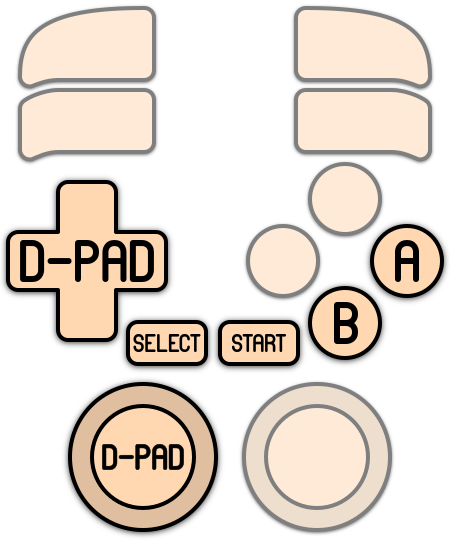
Here are the Nintendo Entertainment System's controls shown on a Batocera Retropad:
Troubleshooting
For further troubleshooting, refer to the generic support pages.
- systems/nes.1638528554.txt.gz
- Last modified: 5 years ago
- by atari